Learn how to efficiently duplicate membership products within the GameDay Platform. This guide will walk you through the bulk copy process, saving you time and effort when setting up recurring products or preparing for the upcoming season.
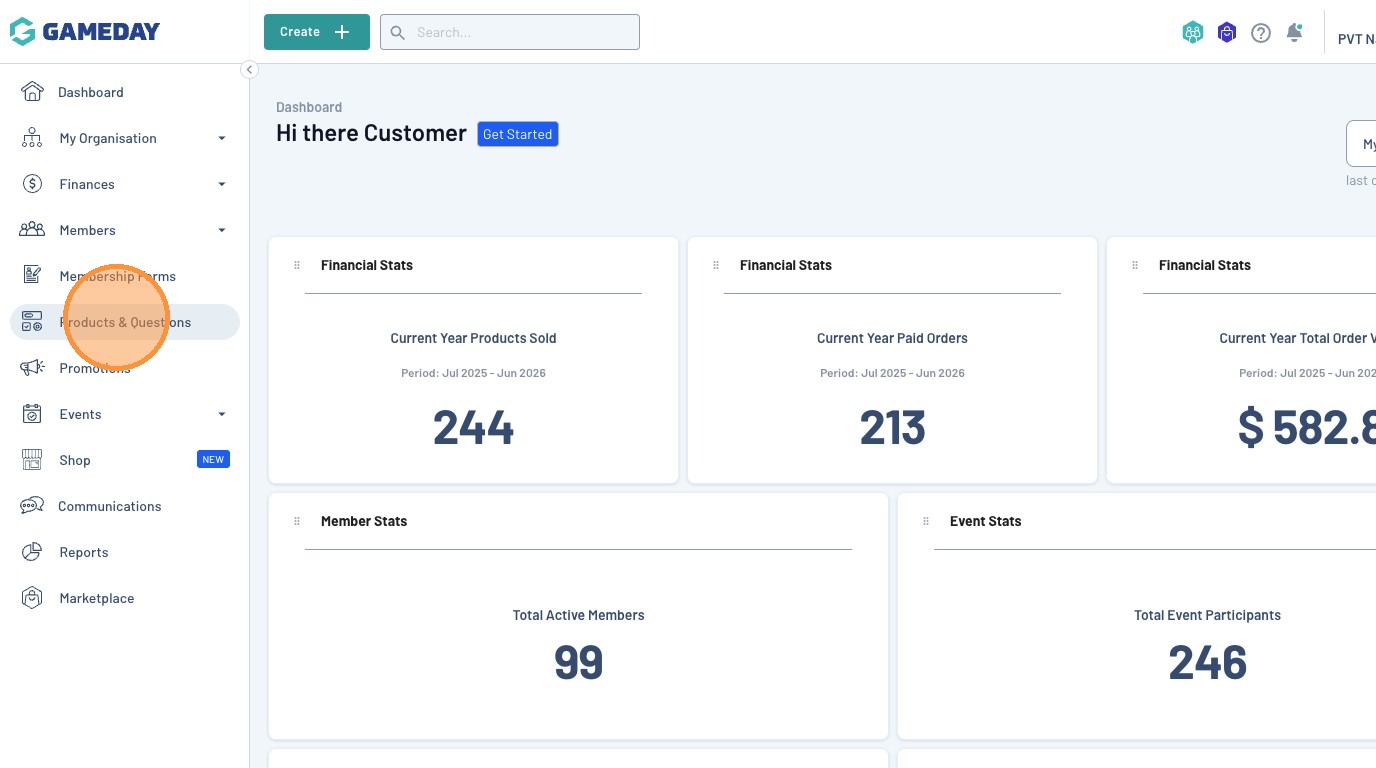
Click "Products & Questions"
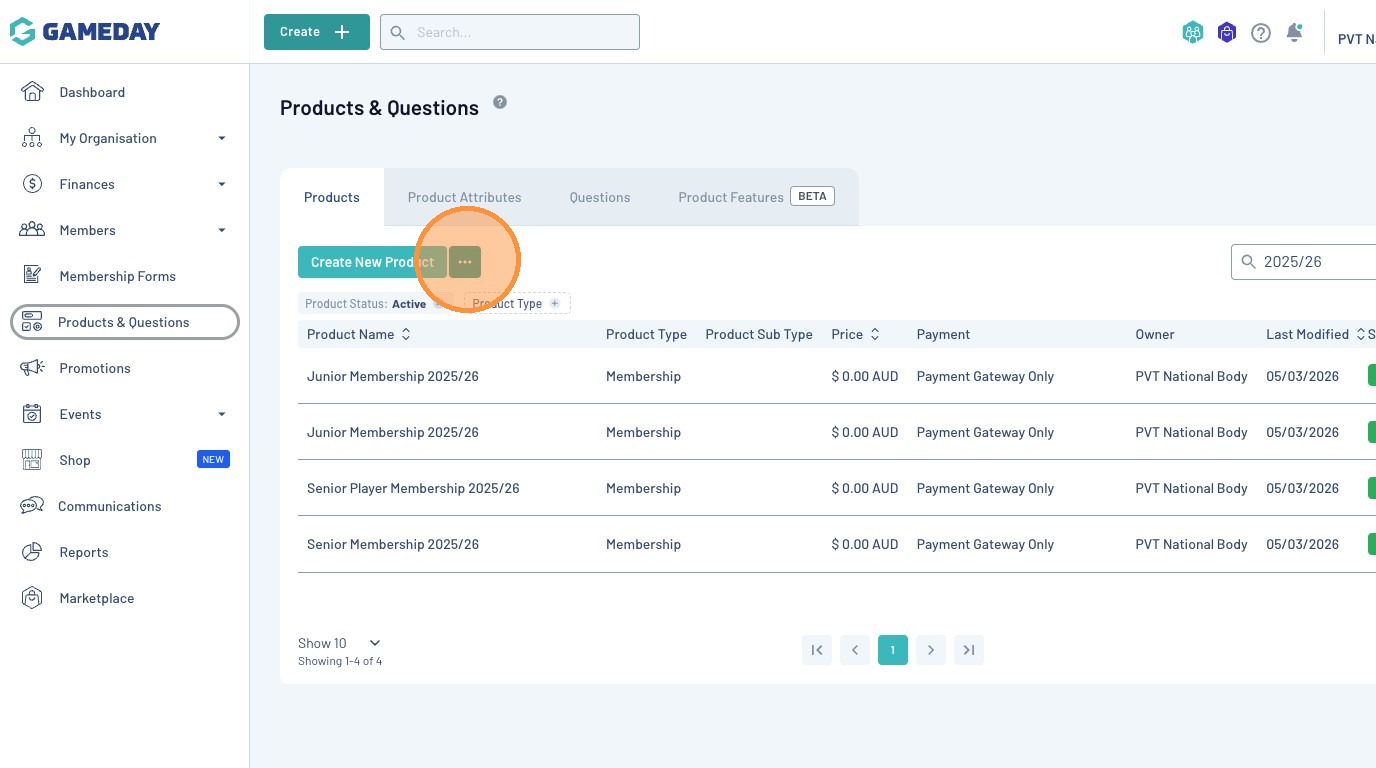
Click on the ellipsis icon
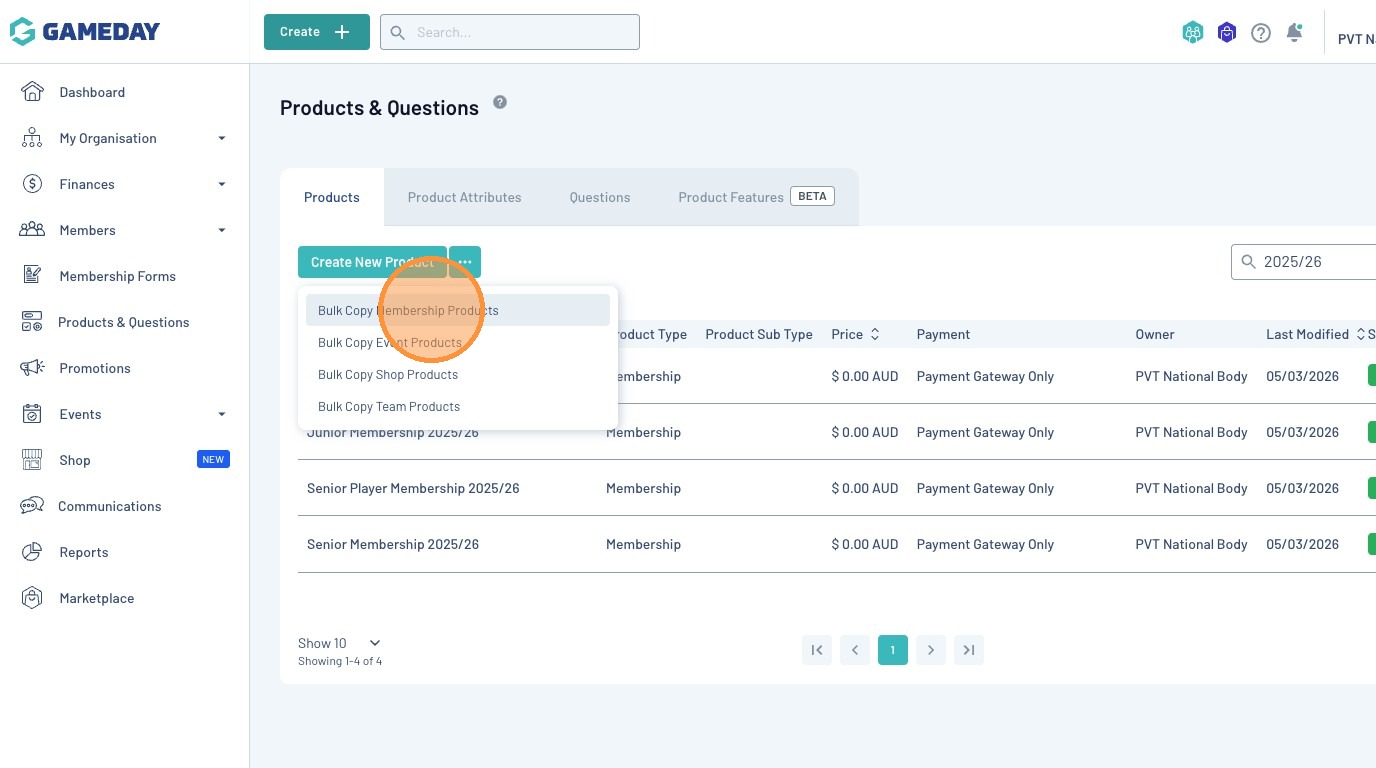
You will now see a dropdown menu containing the option to Bulk Copy products for Membership, Events, Shop and Teams
From the setup wizard, you can now select which products you would like to copy
Note: Clicking the top checkbox will select all available products
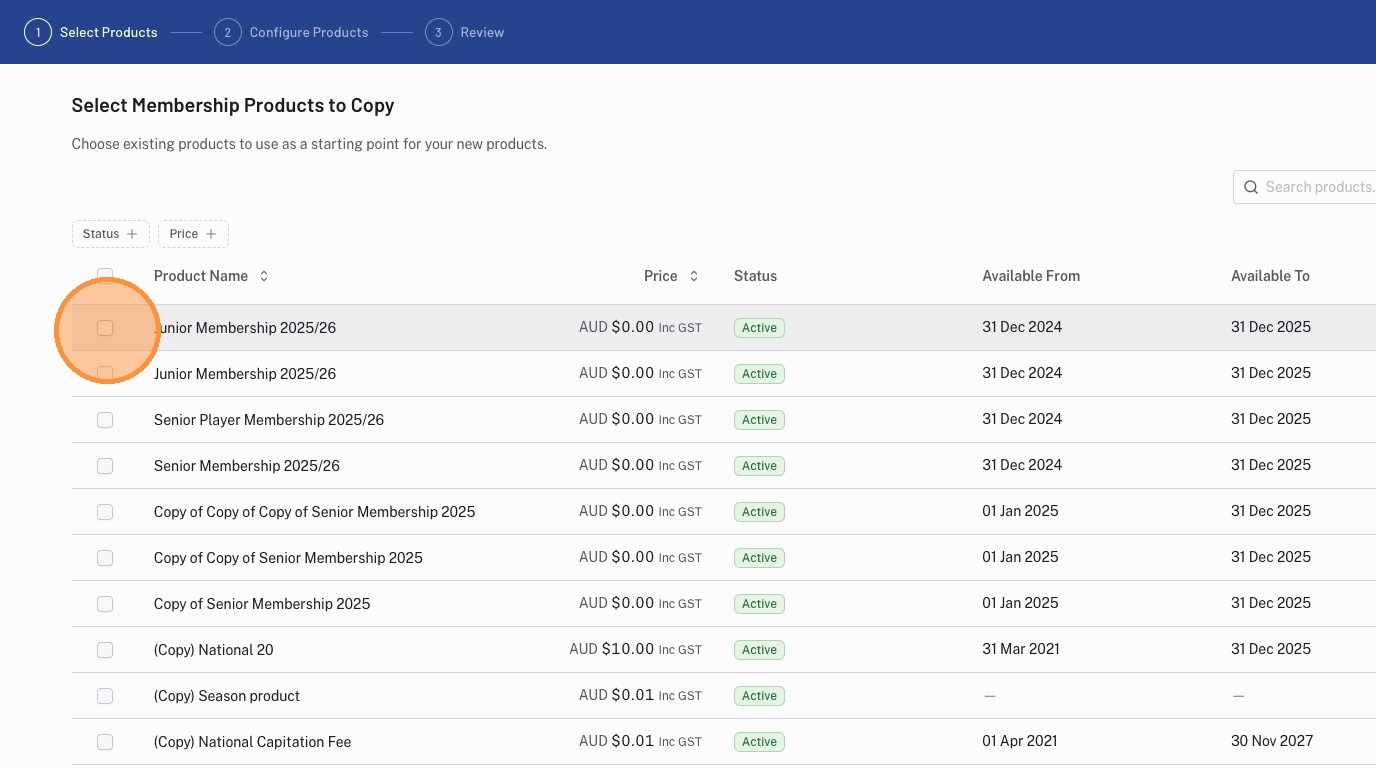
Once you have confirmed your product selection, click "Continue"
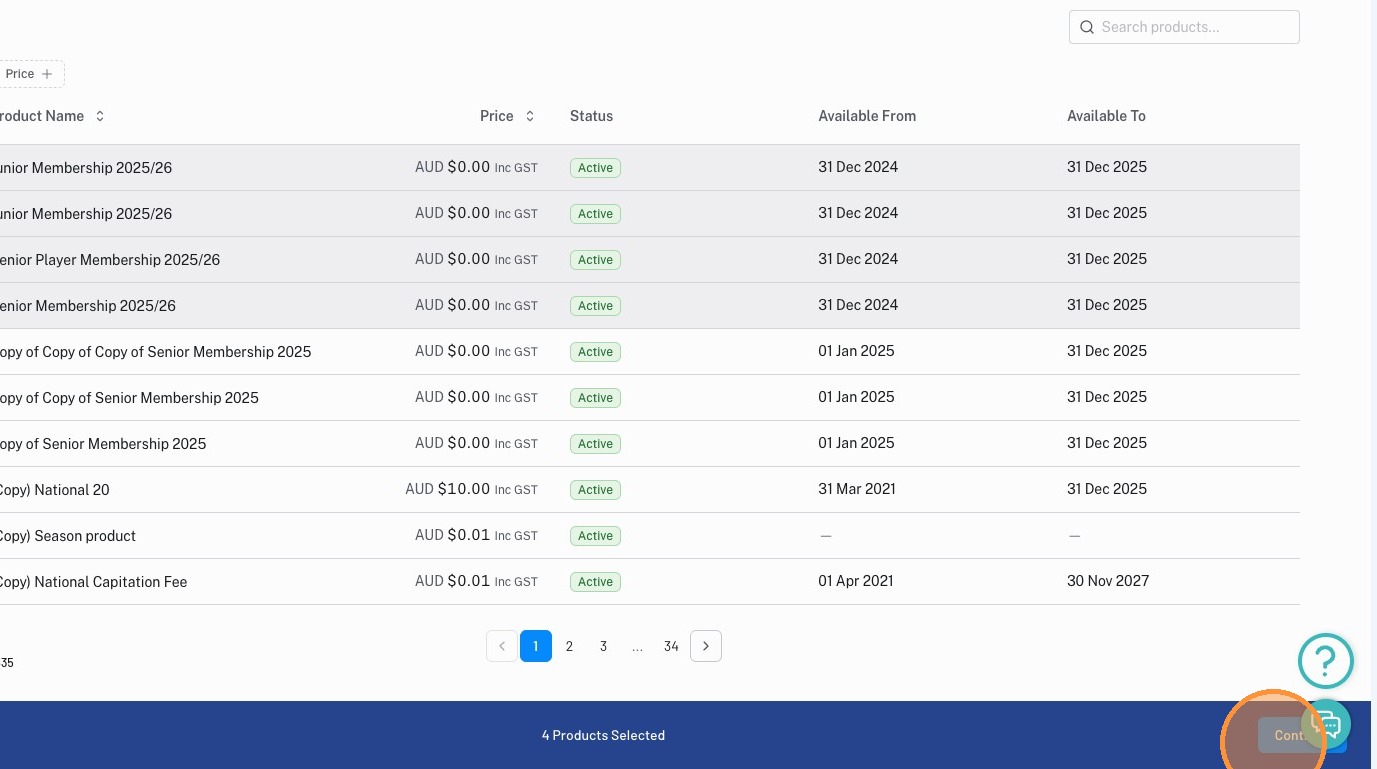
You are now able to configure your product in bulk. This screen will allow you to edit your selected products in a tabular view.
Clicking each cell will review the edit options for that particular field.
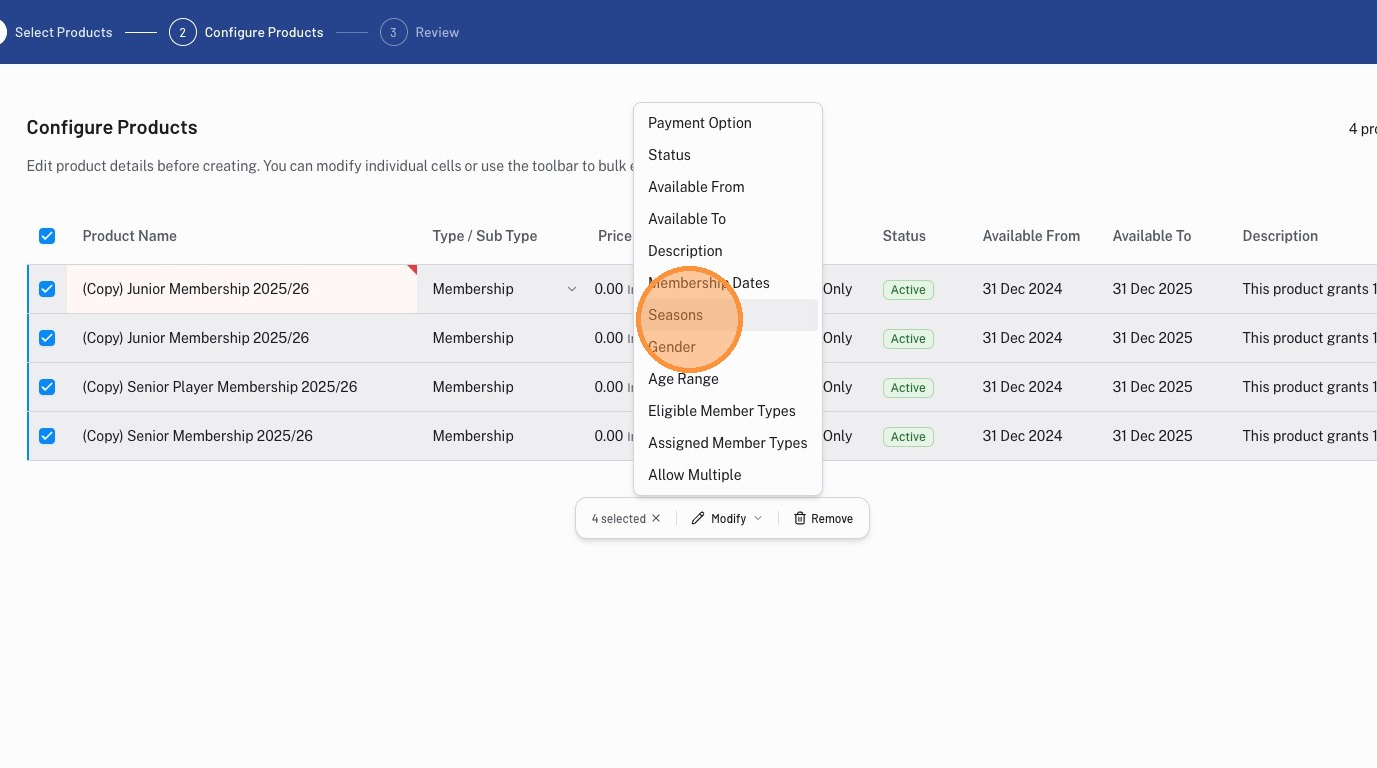
Available fields include:
Product Name
Type/Sub Type
Price
Payment Options
Status
Available From
Available To
Description
Membership Dates
Seasons
Gender
Age Range
Eligible Member Types
Assigned Member Types
Allow Multiple
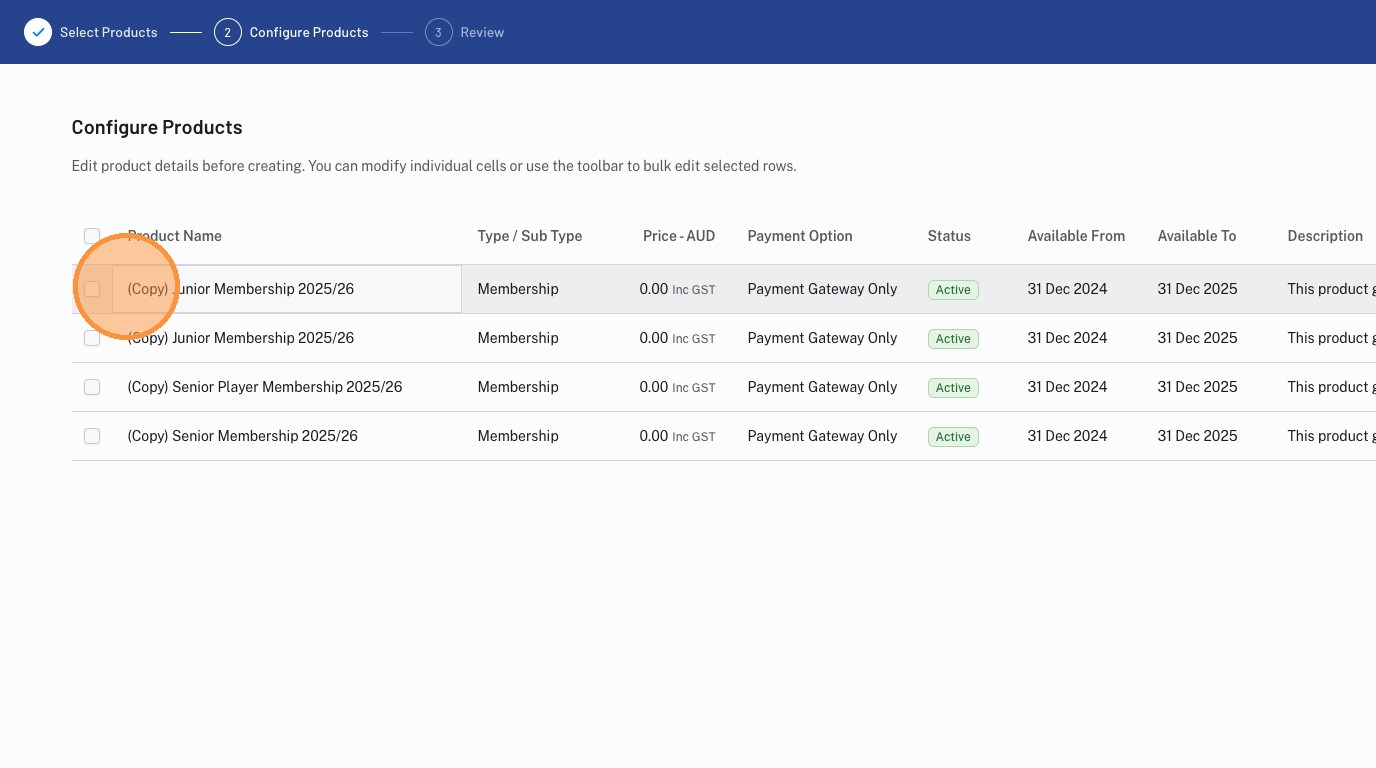
By clicking the checkbox next to the product, you will be able to select multiple products and update specific fields in bulk.
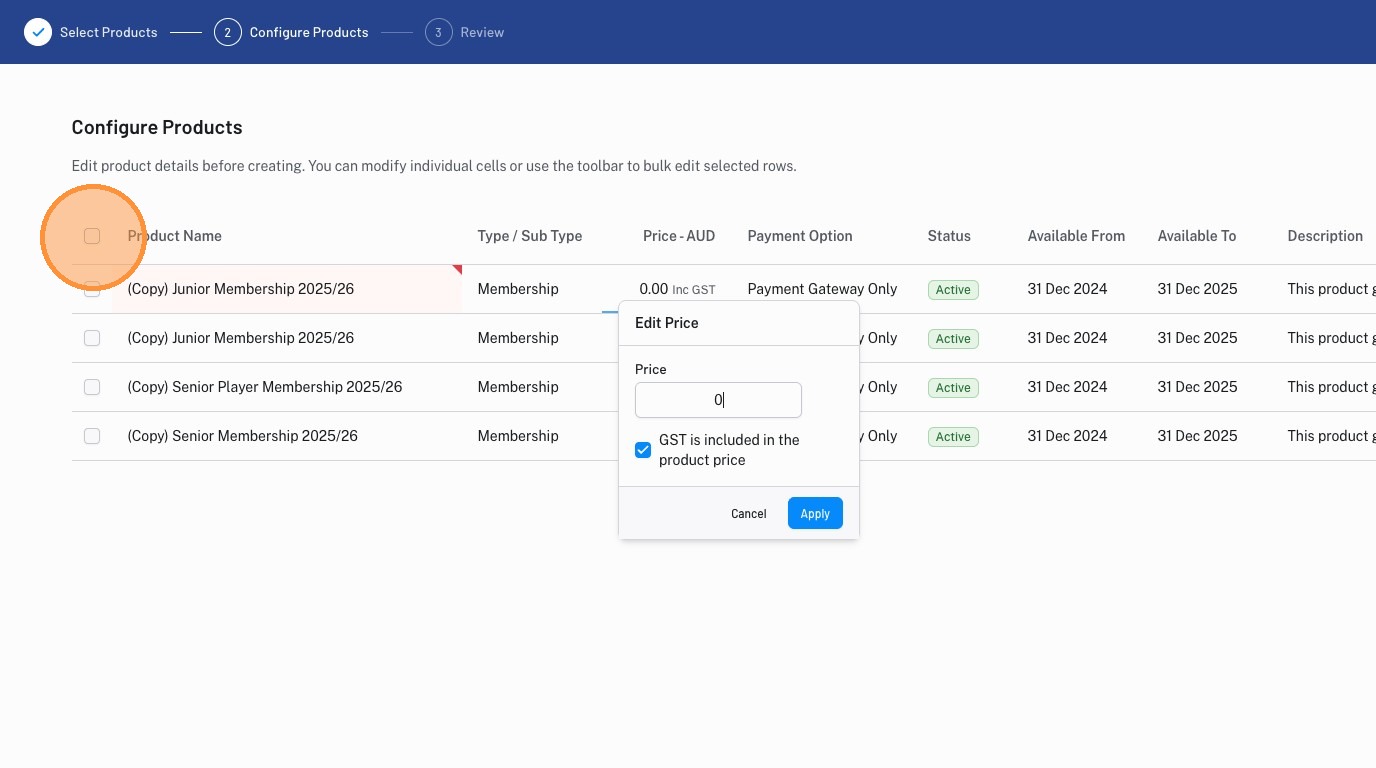
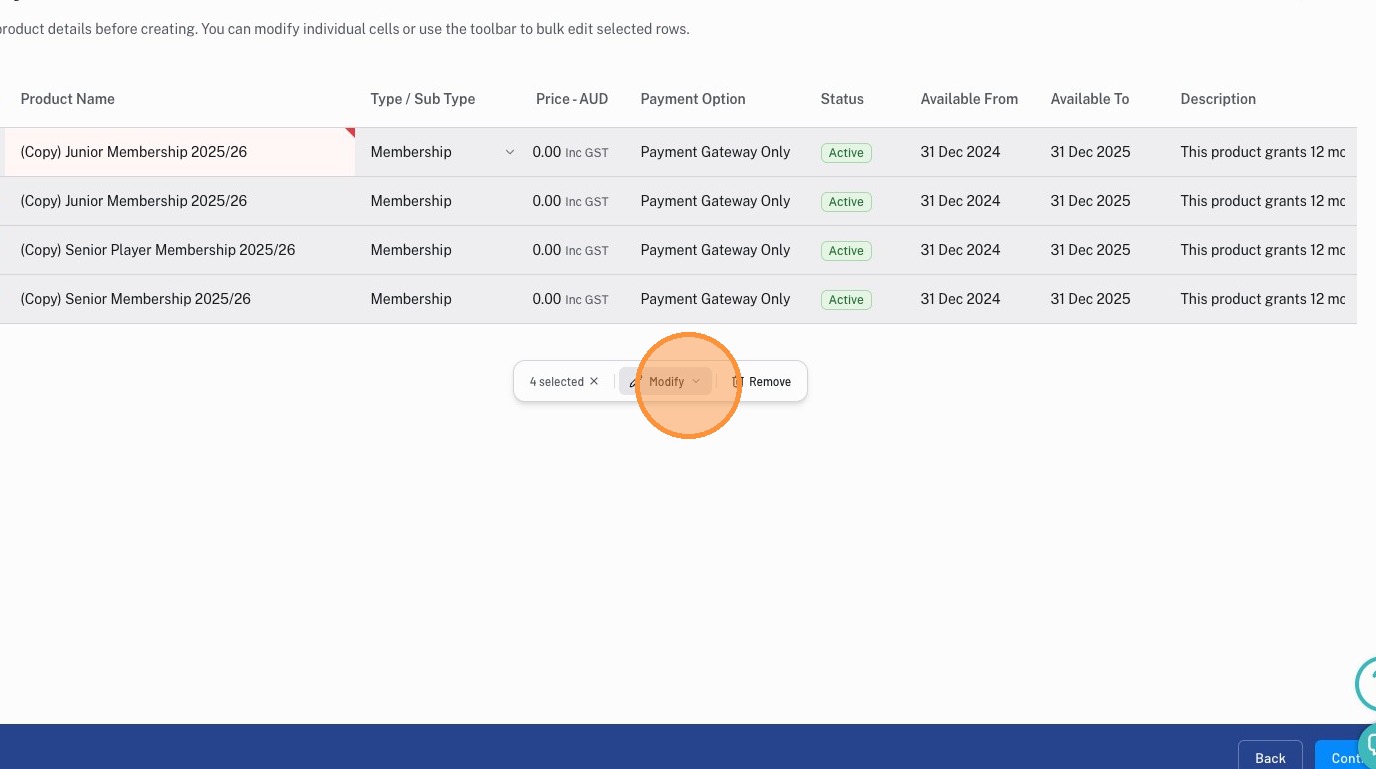
Selecting multiple products will reveal the "Modify" option.
This function will allow you to make a change to all selected products as once.
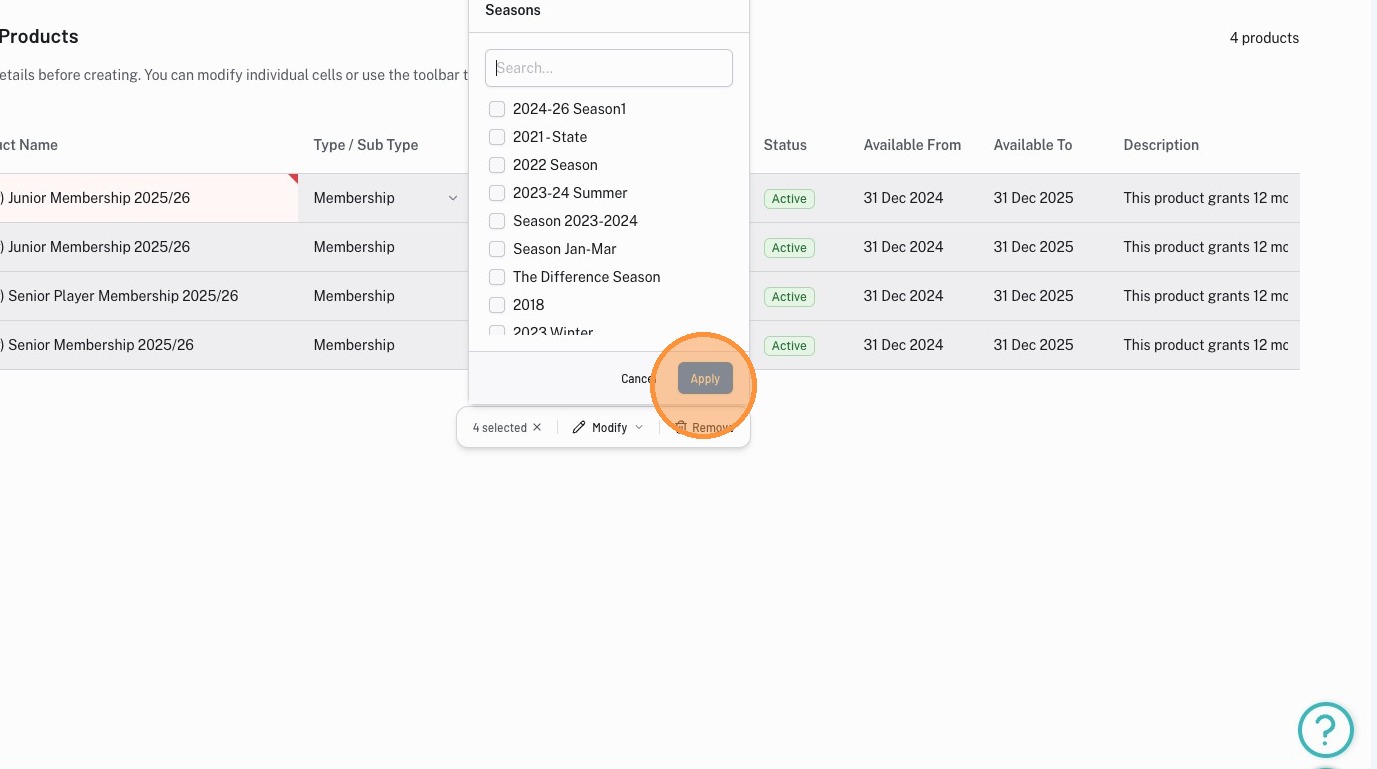
This is useful during a season rollover where all newly created product require the upcoming season to be applied
Click "Apply"
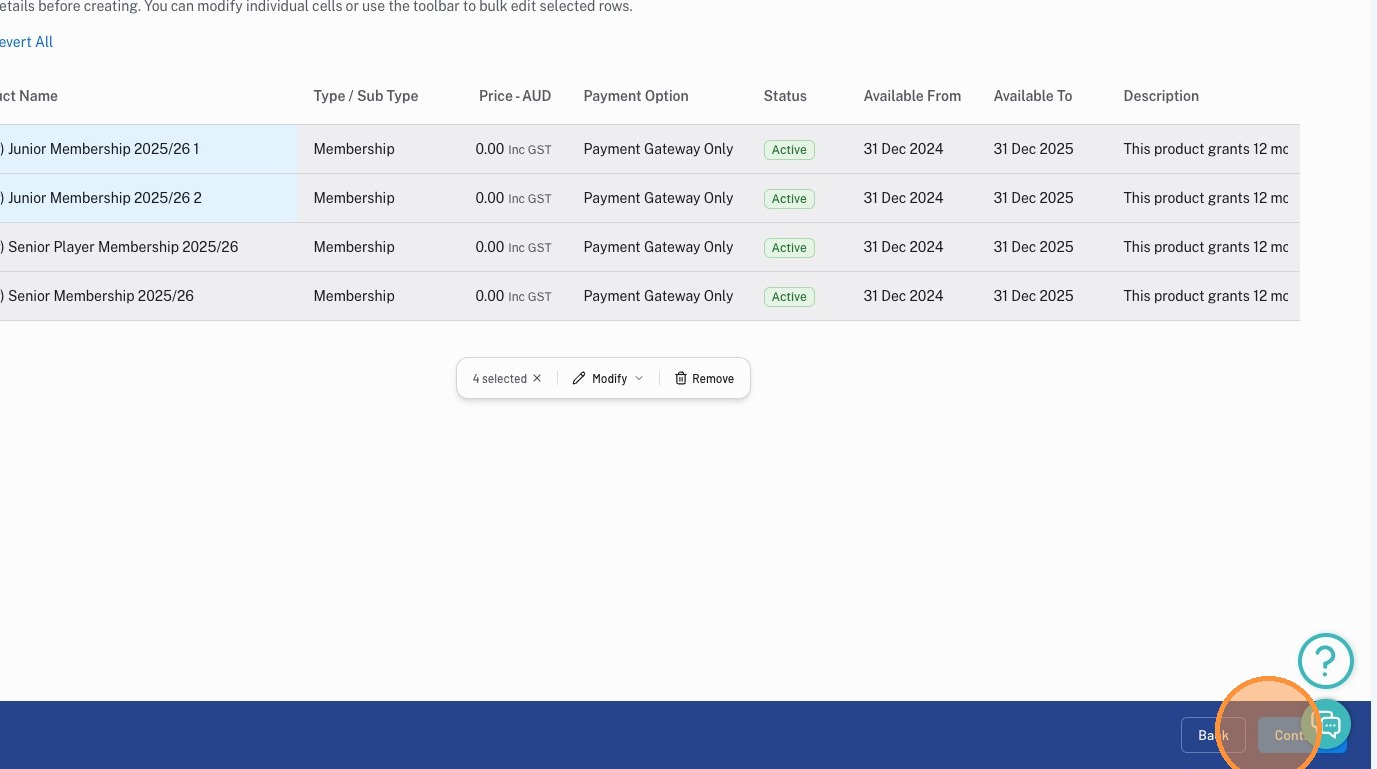
Once you have made all the required changes, click "Continue"
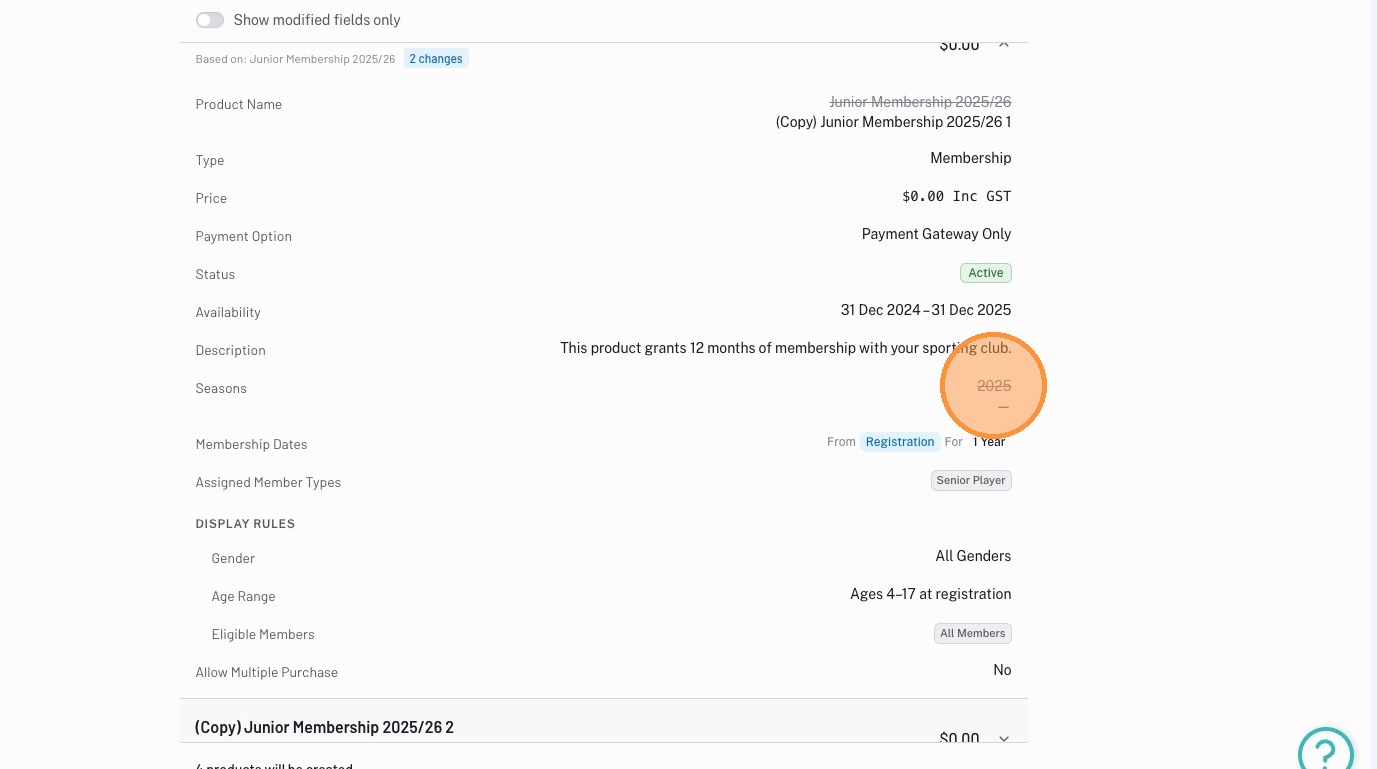
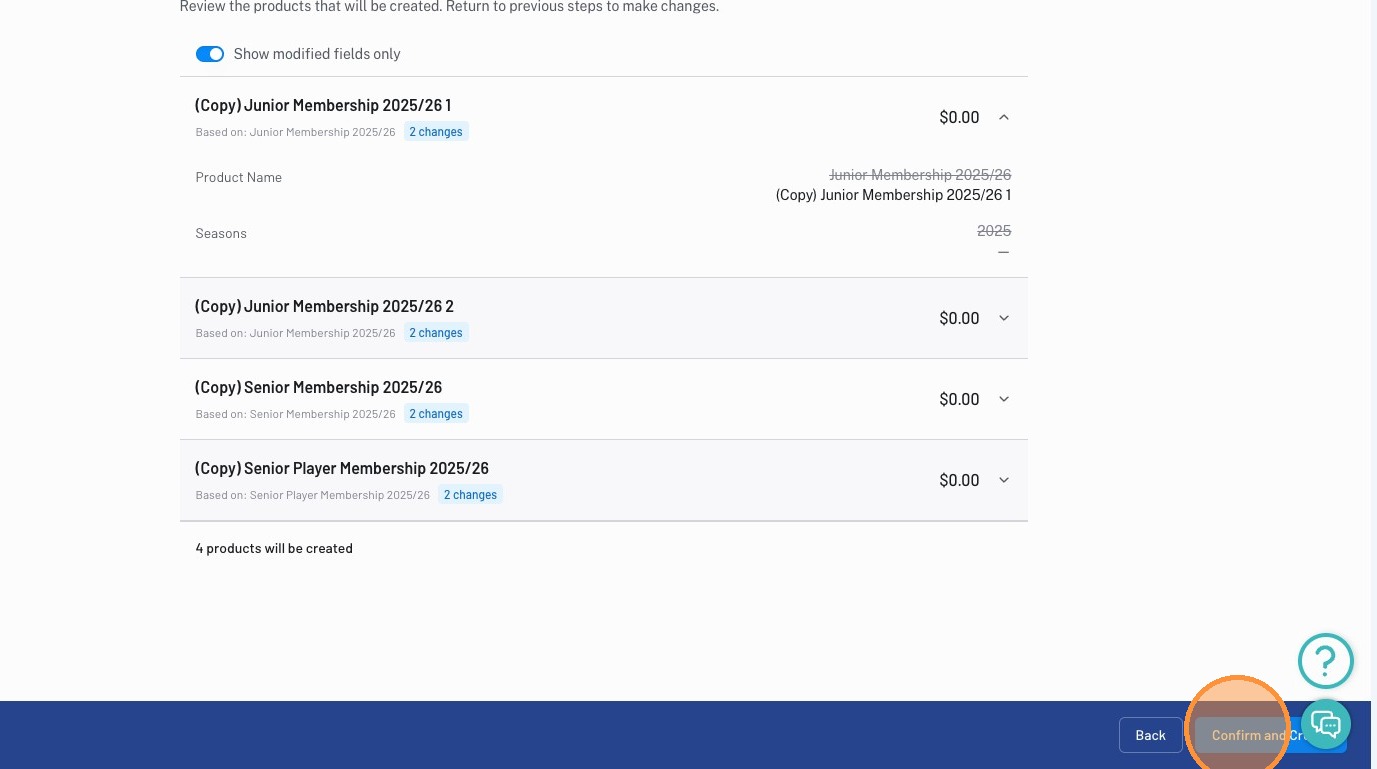
Clicking the expand icon will reveal all available fields
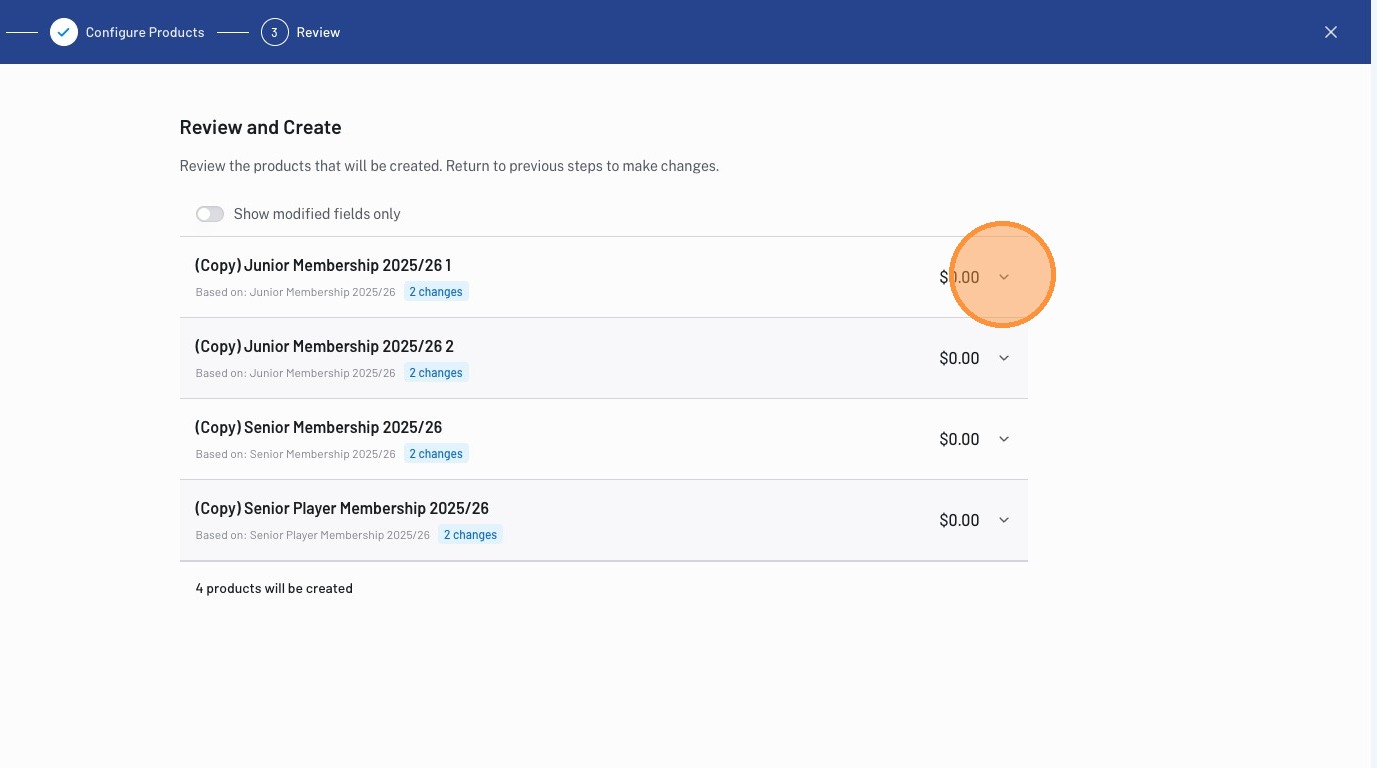
All changes will be appear with a strike through, highlight which fields have been updated
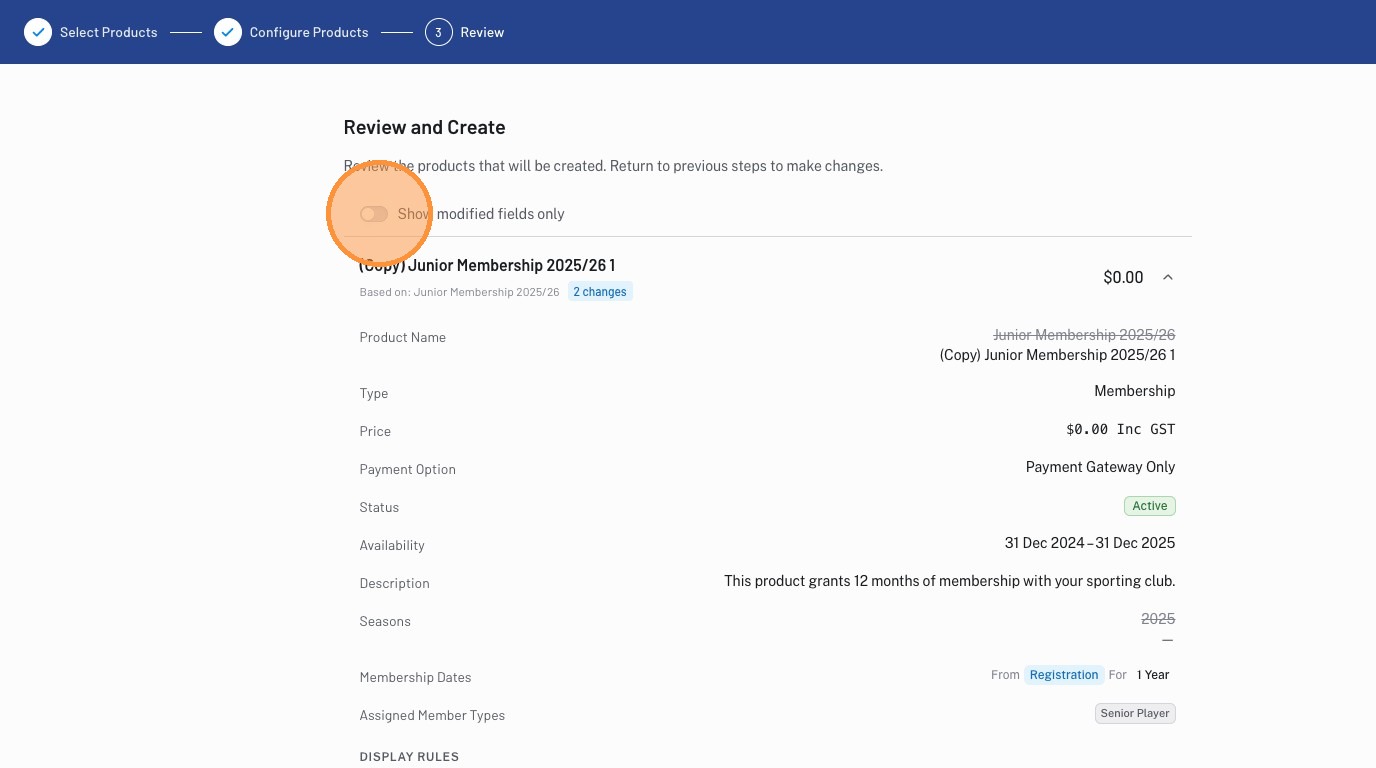
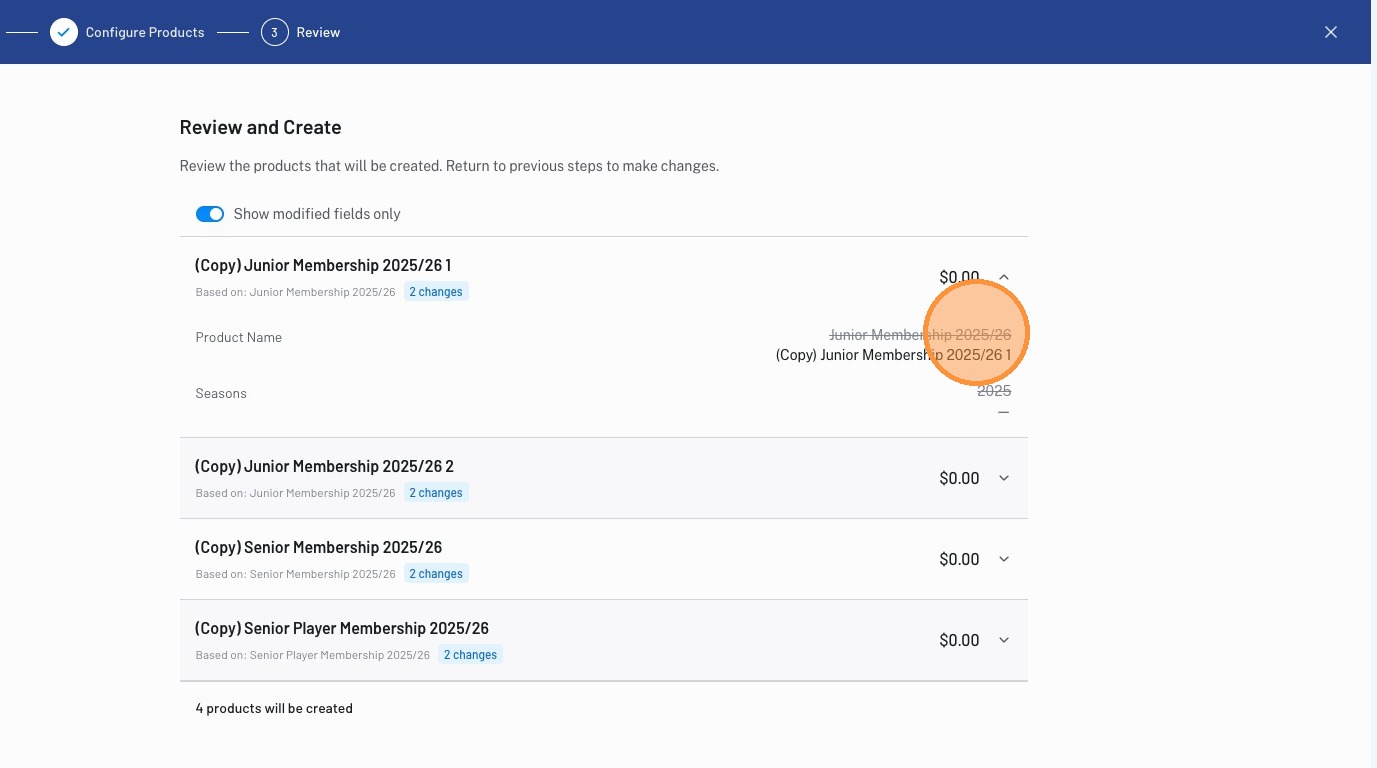
If you would only like to see the changes you have made and exclude all irrelevant fields, click the "Show modified fields only" toggle to hide unchanged fields.
Click "Confirm and Create"
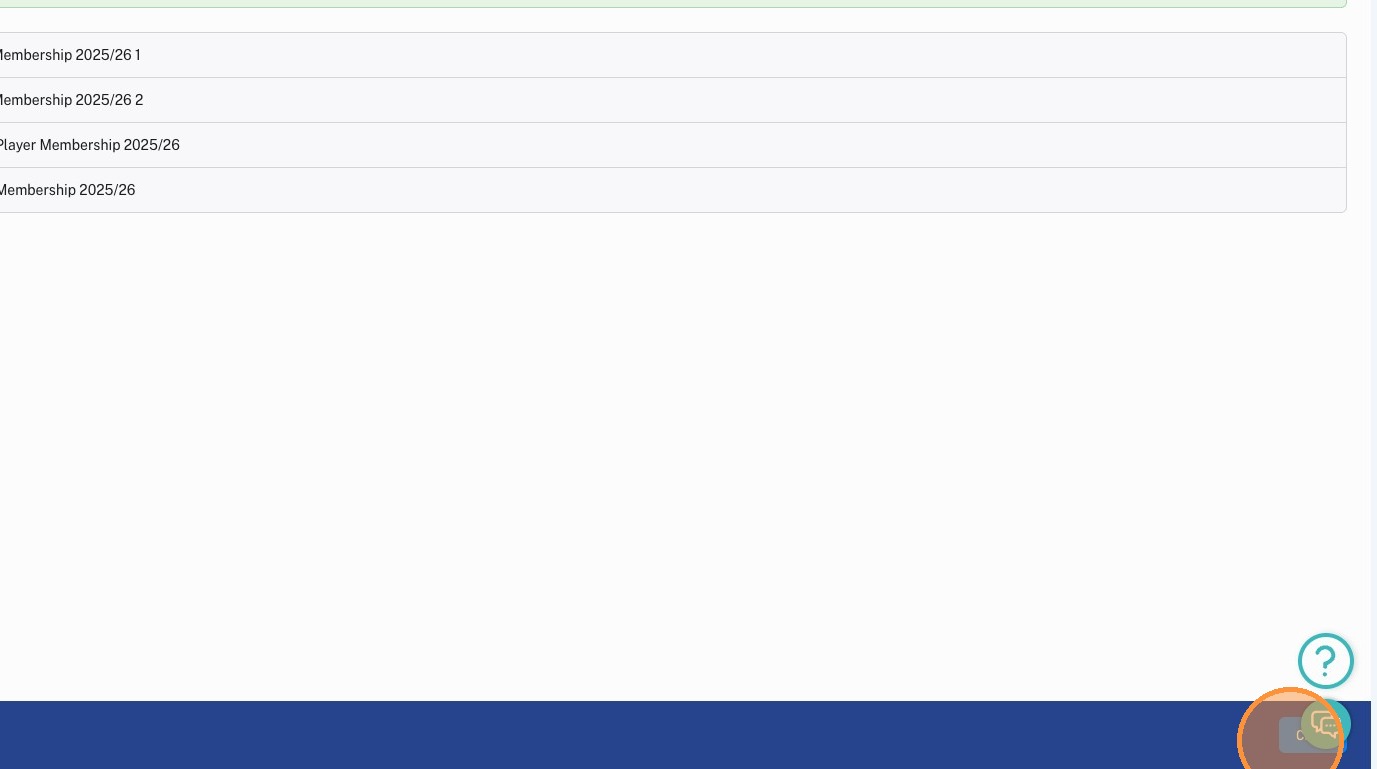
Click "Close"